How to Run AI Locally with Ollama and Open WebUI: A Private ChatGPT Alternative for Developers
AI tools have moved from novelty to daily driver at a ridiculous pace. A few years ago, using an AI assistant meant opening a browser tab, pasting a problem, and hoping the answer was useful. Today, it’s becoming part of the terminal, the editor, the automation stack, and even the homelab.
But there is one problem that keeps bothering me: not every prompt belongs in somebody else’s cloud.
I’m not saying cloud AI is bad. For the biggest models, deep research, or high-quality reasoning, it still makes a lot of sense. But for day-to-day development tasks like explaining logs, drafting scripts, summarizing configuration files, or rubber-ducking Docker errors, local AI is finally good enough to be useful. Better yet, it fits the same philosophy as the rest of my tooling: self-hosted where practical, scriptable when possible, and simple enough to rebuild from scratch.
In this post, let’s build a local AI workstation using Ollama and Open WebUI. Think of it as a private ChatGPT-like setup running on your Mac or home server, with no API key required for the basic workflow.
If you landed here searching for how to run AI locally, the short version is this: install Ollama, download a model, and add Open WebUI if you want a polished browser interface. The longer version is more interesting, because the real value is not just running a chatbot on your machine. It’s building a small, private AI layer that can help with coding, DevOps, documentation, and automation without turning every question into a cloud request.
Quick Answer: The Best Local AI Stack for Developers
For most developers, the easiest local AI setup in 2026 is:
- Ollama for running local large language models on macOS, Linux, or a home server
- Open WebUI for a self-hosted ChatGPT-style interface
- Docker Compose to keep the web interface easy to update and rebuild
- A small coding-friendly model like
qwen3:8b,llama3.2:3b, or another model that fits your hardware
This gives you a private AI assistant that works well for everyday development tasks: explaining logs, generating shell scripts, reviewing Docker Compose files, summarizing documentation, drafting blog posts, and brainstorming automation workflows.
It is also one of the simplest ways to build a self-hosted AI assistant without buying a GPU server or maintaining a complicated machine learning stack. You are not training models. You are running already-built models locally, the same way you would run a database, a reverse proxy, or any other developer service.
Why Bother Running AI Locally?
The obvious answer is privacy, but that’s only part of the story. Local AI has a few practical advantages that line up really well with developer workflows.
No round trip to a cloud provider: Small and medium models respond quickly on modern Apple Silicon machines. For short prompts, the experience can feel instant enough to keep you in flow.
Private by default: You can ask questions about internal scripts, local logs, configuration files, or personal notes without automatically sending them to a third-party API.
Works without another subscription: Once the model is downloaded, you can use it as much as your hardware allows. No per-token anxiety, no surprise bill, no juggling API credits.
Terminal friendly: Ollama exposes a simple command-line interface and a local HTTP API. That means it can be wired into shell scripts, Raycast commands, n8n workflows, or whatever else you already use.
Great for experimentation: Want to compare Qwen, Llama, Mistral, or DeepSeek-style reasoning models on the same prompt? Pull a model, run it, and decide for yourself.
The tradeoff is also clear: local models are not magic. They are smaller, sometimes slower, and less capable than the best hosted models. I see them less as a replacement for every AI service and more as a private utility layer for the boring 80% of tasks.
Local AI vs Cloud AI
The question I hear most often is whether local AI can replace ChatGPT, Claude, Gemini, or other cloud AI tools. My answer is: sometimes, but that should not be the only goal.
Cloud AI still wins when you need the strongest reasoning, large context windows, polished multimodal features, or the newest frontier models. If I’m trying to solve a difficult architecture problem or review a complex design decision, I may still reach for a hosted model.
Local AI wins when the task is frequent, private, repetitive, or close to your workstation. A local LLM is perfect when you want to ask about a log file, generate a quick Bash script, summarize a config file, rewrite a README, or get a second opinion on a Docker error. These are the tasks where convenience and privacy matter more than having the absolute biggest model available.
Here’s the mental model I use:
- Use local AI for private notes, logs, configuration files, small coding tasks, and automation helpers.
- Use cloud AI for high-stakes reasoning, large documents, image input, or tasks where model quality matters more than privacy.
- Use both when you want the best workflow: local first, cloud when needed.
That balance keeps costs down, reduces unnecessary data sharing, and gives you a practical local ChatGPT alternative without pretending that every model is equal.
What We Are Building
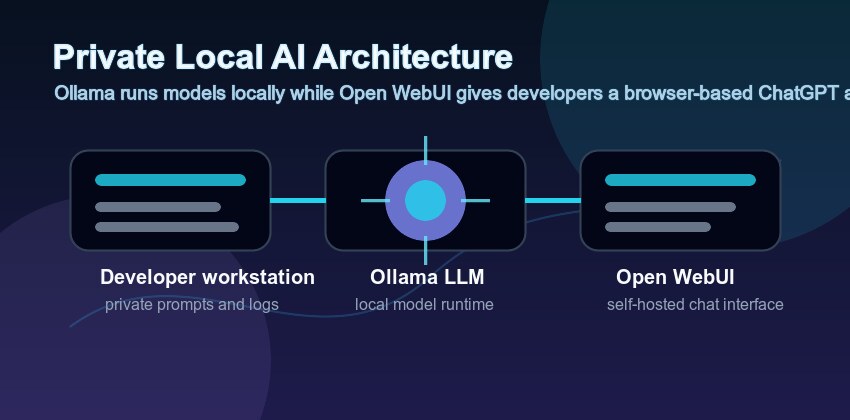
Our setup has two main pieces:
Ollama: Runs the actual language models locally and exposes them through a CLI and API.
Open WebUI: Provides a clean browser interface, chat history, model selection, prompts, and a familiar AI assistant experience.
You can stop after installing Ollama if you only want terminal access. Open WebUI is optional, but I like having both. The terminal is perfect for quick one-liners; the web interface is better for longer conversations and comparing model behavior.
Prerequisites
Before getting started, you’ll need:
- A Mac, Linux machine, or small home server.
- Docker and Docker Compose installed if you want Open WebUI.
- Homebrew if you’re following the macOS commands.
- At least 8GB of RAM for small models, 16GB or more if you want a more comfortable experience.
- A little bit of patience for the first model download.
If you’re on an Apple Silicon Mac with 16GB+ of RAM, you’re in a pretty good place. You won’t be running the largest frontier models locally, but you can run very useful coding and general-purpose models.
Step 1: Install Ollama
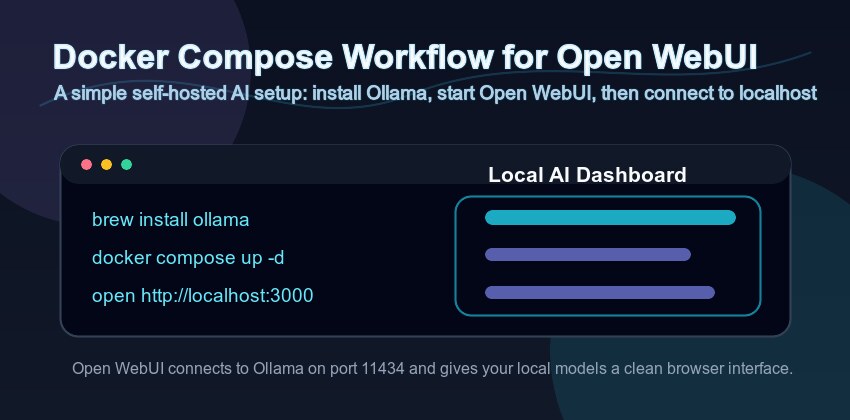
On macOS, the easiest installation path is Homebrew:
1
brew install ollama
Start the Ollama service:
1
brew services start ollama
You can also run it manually if you prefer seeing the logs directly in your terminal:
1
ollama serve
Ollama listens locally on port 11434 by default. You can verify that it’s alive with:
1
curl http://localhost:11434/api/tags
If you get a JSON response, you’re good to go.
Step 2: Pull a Useful Model
Now we need a model. The best choice changes quickly, but I usually start with a small model first to make sure the setup works.
1
ollama pull llama3.2:3b
Then try it:
1
ollama run llama3.2:3b
Ask it something practical:
1
2
Explain this command like I am about to run it on a production server:
docker compose up -d --remove-orphans
Once that works, try a stronger model if your machine can handle it:
1
2
ollama pull qwen3:8b
ollama run qwen3:8b
For local coding help, I like testing the same prompt across a few models. Some are better at shell scripts, some are better at explaining errors, and some are better at structured output. The nice thing about Ollama is that switching models is trivial.
You can list installed models with:
1
ollama list
And remove one you don’t use anymore:
1
ollama rm llama3.2:3b
Best Local AI Models to Try
Model recommendations change fast, so don’t treat this list as permanent. The best local AI model depends on your hardware, patience, and use case. Still, a few categories are worth knowing.
Small general models: These are the best place to start. They run quickly, use less memory, and are good enough for summaries, short explanations, and basic command-line help. If you’re on an 8GB or 16GB machine, start here.
Coding-focused models: These are tuned for software development tasks. They tend to perform better when you ask for shell scripts, Docker Compose explanations, Python snippets, or debugging suggestions.
Reasoning-style models: These can be useful for multi-step troubleshooting, but they may be slower. I like them for asking, “What are the safest next diagnostic steps?” rather than “Write this one-liner.”
Larger models: These can give better answers, but only if your machine can run them comfortably. A model that technically runs but takes forever to respond will not become part of your daily workflow.
My advice is boring but effective: keep one fast model and one stronger model installed. Use the fast model for quick terminal prompts and the stronger model when you are in Open WebUI and want a more detailed answer.
For example:
1
2
ollama pull llama3.2:3b
ollama pull qwen3:8b
Then test both with the same practical prompt:
1
Review this Docker Compose file for reliability, security, and maintenance issues. Keep the answer practical.
The best model is the one you trust enough to actually use.
Step 3: Add Open WebUI with Docker Compose
Ollama is already useful from the terminal, but a browser interface makes the setup easier to use day-to-day. Open WebUI gives you chat history, model switching, prompt management, and a more familiar interface.
Create a project directory:
1
2
mkdir local-ai
cd local-ai
Create a docker-compose.yml file:
1
2
3
4
5
6
7
8
9
10
11
12
13
14
15
16
services:
  open-webui:
    image: ghcr.io/open-webui/open-webui:main
    container_name: open-webui
    restart: unless-stopped
    ports:
      - "3000:8080"
    environment:
      OLLAMA_BASE_URL: http://host.docker.internal:11434
    extra_hosts:
      - "host.docker.internal:host-gateway"
    volumes:
      - open_webui_data:/app/backend/data

volumes:
  open_webui_data:
Start it:
1
docker compose up -d
Open your browser and visit:
1
http://localhost:3000
Create the first admin account, select one of your Ollama models, and start chatting. If Open WebUI cannot see Ollama, check that Ollama is running and that the OLLAMA_BASE_URL points to http://host.docker.internal:11434.
Why Open WebUI Is Worth Adding
You can absolutely use Ollama without Open WebUI. In fact, if you live in the terminal, you may use the CLI more than anything else. Still, Open WebUI adds a few features that make local AI feel less like a demo and more like a real tool.
Chat history: Longer troubleshooting sessions are easier when you can keep context in one place.
Model switching: You can compare answers from different local models without changing commands.
Prompt organization: Reusable prompts are handy for repeated tasks like “summarize this log” or “explain this configuration file.”
A familiar interface: If family members, teammates, or non-terminal users want to try your local AI setup, a web UI lowers the barrier.
In other words, Ollama is the engine. Open WebUI is the dashboard. You don’t need both, but together they make a very nice self-hosted AI setup.
Step 4: Make It Useful for Development
At this point, the setup works. The question is how to make it more than a toy.
Here are the tasks where local AI has been genuinely useful for me:
Explaining logs: Paste a failed Docker, systemd, npm, or Jekyll build log and ask for the likely root cause. Local models are good at pattern matching common errors.
Drafting shell scripts: Ask for a first version of a backup, cleanup, or deployment script, then review it carefully before running anything.
Summarizing config files: Feed it a docker-compose.yml, Nginx config, or GitHub Actions workflow and ask what each section does.
Creating checklists: Ask it to turn a rough idea into a deployment checklist, migration checklist, or troubleshooting flow.
Transforming text: Convert notes into Markdown, rewrite a changelog, generate commit message drafts, or clean up documentation.
For example:
1
journalctl -u docker --since "1 hour ago" | ollama run qwen3:8b "Summarize the errors and suggest the safest next diagnostic step."
Or with a local file:
1
ollama run qwen3:8b "Explain this Docker Compose file and point out anything risky:" < docker-compose.yml
That’s where local AI shines. It’s not replacing your judgment; it’s reducing the friction between noticing a problem and forming the first useful hypothesis.
Practical Prompt Ideas for Local AI
The fastest way to get value from local AI is to stop asking vague questions and start giving it specific jobs. Here are a few prompts I keep coming back to.
1
Explain this error log. Give me the most likely cause first, then the safest next command to run.
1
Review this docker-compose.yml for security, persistence, networking, and upgrade risks.
1
Turn these rough notes into a Markdown checklist for a server migration.
1
Rewrite this README section for a beginner, but keep the technical details accurate.
1
Generate a Bash script for this task, but include comments and avoid destructive commands unless explicitly confirmed.
That last part matters. Local AI is still AI. It can produce commands that look convincing and are completely wrong for your environment. I always ask for explanations, dry-run options, and safety checks when the output touches files, servers, DNS, backups, or anything production-related.
Step 5: Add a Simple CLI Helper
Typing the full command every time gets old quickly. I like adding a small shell function to my .zshrc:
1
2
3
ai() {
  ollama run qwen3:8b "$@"
}
Reload your shell:
1
source ~/.zshrc
Now you can run:
1
ai "Write a short checklist for rotating SSH keys on a Linux server."
You can also pipe content into it:
1
cat README.md | ai "Summarize this project in five bullet points."
If you work with multiple models, create a few aliases:
1
2
alias ai-fast='ollama run llama3.2:3b'
alias ai-code='ollama run qwen3:8b'
Simple, boring, and effective.
Step 6: Keep the Setup Private
This is the part where it’s tempting to expose Open WebUI through Cloudflare Tunnel and call it a day. I would be careful with that.
For a personal local AI dashboard, I prefer keeping it bound to localhost or available only over a private VPN like WireGuard or Tailscale. AI interfaces are attractive targets because they often sit close to private files, prompts, credentials, and internal notes.
If you do expose it remotely, at minimum add:
- Strong authentication
- HTTPS
- IP restrictions or Zero Trust access rules
- Regular container updates
- Backups of the Open WebUI data volume
For most people, local-only is the better default.
Hardware Expectations
You do not need a monster machine to run AI locally, but expectations matter.
On an Apple Silicon MacBook Air or Mac mini with 8GB of RAM, small models can still be useful for short prompts and quick explanations. With 16GB of RAM, the experience gets much more comfortable. With 32GB or more, you can experiment with larger models and longer prompts without constantly worrying about memory pressure.
For a Linux workstation or home server, a GPU helps, but it is not mandatory for small models. CPU-only inference can work, especially for background tasks and automation, but it will feel slower. If you are planning a dedicated homelab AI server, then GPU memory becomes the real constraint. More VRAM means larger models and better performance.
My recommendation: start with the machine you already have. Install Ollama, pull a small model, and see if the workflow is useful before buying hardware. It is very easy to overbuild a local AI server before knowing what you will actually use it for.
Updating Everything
Update Ollama through Homebrew:
1
2
3
brew update
brew upgrade ollama
brew services restart ollama
Update Open WebUI:
1
2
docker compose pull
docker compose up -d
Update models when needed by pulling them again:
1
ollama pull qwen3:8b
If disk space starts disappearing, check your installed models:
1
ollama list
Then remove anything you are not using:
1
ollama rm model-name
Troubleshooting
Open WebUI says Ollama is unavailable: Make sure Ollama is running with brew services list or by opening http://localhost:11434/api/tags in your browser.
The model is painfully slow: Use a smaller model. A fast local model you actually use is better than a huge model that makes every prompt feel like a coffee break.
Docker cannot reach Ollama: Confirm OLLAMA_BASE_URL is set to http://host.docker.internal:11434. On Linux, the extra_hosts line helps Docker resolve that hostname.
You ran out of disk space: Models can be large. Run ollama list, remove unused models, and keep only the ones you actually use.
Answers are too confident: This is still AI. Ask for commands to be explained before running them, use --dry-run options when available, and never paste secrets into a prompt just because the model is local.
FAQ: Running AI Locally with Ollama
Can I run AI locally for free? Yes. Ollama, many open models, and Open WebUI are free to use. Your real cost is hardware, electricity, storage, and time spent maintaining the setup.
Is Ollama a ChatGPT alternative? It can be, depending on what you need. Ollama with Open WebUI gives you a private ChatGPT-style interface, but the answer quality depends on the local model you run.
Is local AI private? Local AI is much more private than sending prompts to a cloud API, but you still need to be careful. Browser extensions, exposed web interfaces, shared machines, logs, and backups can all leak data if configured poorly.
Do I need Docker? Not for Ollama. Docker is only used here for Open WebUI because it makes installation and updates straightforward.
What is the best local AI model for coding? There is no permanent winner. Start with a smaller model that runs quickly, then test a stronger coding-friendly model on your actual prompts. Your hardware and use case matter more than benchmark headlines.
Can I use this with n8n or other automation tools? Yes. Ollama exposes a local API, so you can connect it to scripts, workflow tools, or self-hosted automation platforms. Just be careful with prompts that include secrets or production data.
Should I expose Open WebUI to the internet? I would avoid it unless you have a good reason. If you need remote access, put it behind a VPN or a serious access-control layer.
Final Thoughts
Local AI feels a lot like self-hosting did a few years ago. It is not always the easiest route, and it is not always the most powerful, but it gives you control. You decide where the data goes, which models you use, how the tools are wired together, and when to shut it all down.
For me, the sweet spot is not replacing cloud AI completely. It’s using local AI as a private utility for everyday development and operations work: logs, scripts, configs, notes, and quick explanations. The stuff that benefits from AI assistance but does not necessarily need to leave your machine.
If you already enjoy Docker, terminals, Cloudflare Tunnels, Raspberry Pis, or homelab automation, Ollama and Open WebUI fit right in. It’s a small weekend project that can quietly become part of your daily workflow.