Mole: The Free Open-Source Alternative to CleanMyMac for macOS
If you’ve been spending money on macOS maintenance apps like CleanMyMac, AppCleaner, or DaisyDisk, you might be surprised to learn there’s a single open-source tool that covers all of them—right from your terminal. Meet Mole, a TUI (Terminal User Interface) application for macOS that deep cleans, optimizes, and monitors your system without the subscription fees or bloated GUIs.
Why Look Beyond GUI Cleaning Apps?
Paid Mac maintenance tools have long dominated the space for cleaning up disk space and managing system health. They work—but they come with real drawbacks in 2025:
Cost: CleanMyMac X runs on a subscription model, and tools like DaisyDisk, while one-time purchases, still add up when you need multiple utilities. Covering what CleanMyMac, AppCleaner, DaisyDisk, and iStat Menus each do could easily cost you $100+ combined.
Bloated GUIs: These applications load into your menu bar, run background agents, and carry heavy UI frameworks for tasks that are fundamentally simple system operations. They’re solving a terminal problem with a lot of unnecessary window dressing.
Lack of scriptability: GUI-based tools don’t compose well with automation. If you want to integrate disk cleanup into a script, a cron job, or a Raycast command, most of these apps offer nothing useful.
Vendor lock-in: Your cleaning preferences, whitelists, and automation rules live inside each app’s own proprietary format. If you switch, you start from scratch.
What Makes Mole Different?
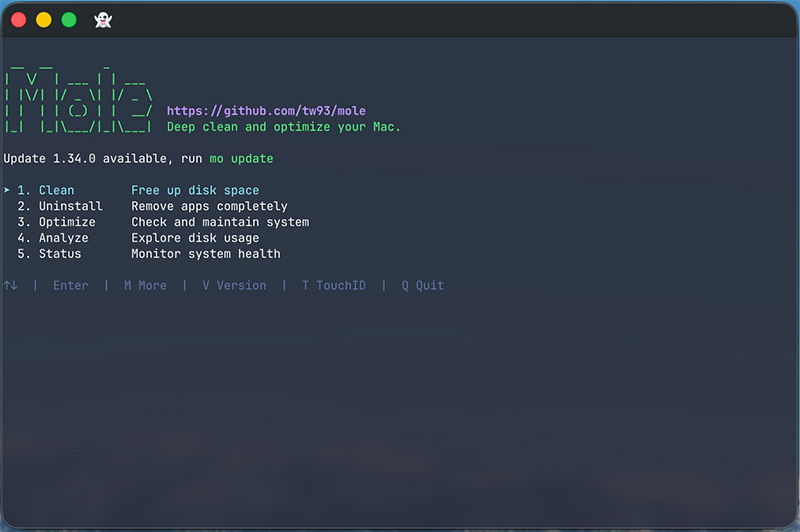
Mole takes a fundamentally different approach. It’s a single binary written in Go and Shell, installable via Homebrew, that combines deep system cleaning, smart app uninstalling, disk analysis, system optimization, and live monitoring into one cohesive TUI experience.
All-in-one toolkit: Mole replaces CleanMyMac, AppCleaner, DaisyDisk, and iStat Menus in a single binary. There’s nothing to license, nothing running in the background, and no GUI to launch.
Deep cleaning: mo clean scans and removes user app caches, browser leftovers, developer tool caches (Xcode, Node.js, npm), system logs, app-specific caches (Spotify, Dropbox, Slack), and trash. Users regularly report freeing 50–100GB in a single run.
Smart App Uninstaller: mo uninstall goes beyond dragging an app to trash. It finds and removes related launch agents, preferences, caches, cookies, extensions, plugins, and hidden remnants across 12+ system locations.
Disk Space Analyzer: mo analyze provides a visual, navigable breakdown of what’s consuming your disk—folders, large files, and old archives—letting you open, reveal in Finder, or delete items interactively.
System Optimization: mo optimize rebuilds system databases, resets network services, refreshes Finder and Dock, removes swap files, and rebuilds the Spotlight index in one pass.
Live System Dashboard: mo status provides a real-time health score with CPU (per-core), memory, disk I/O, network throughput, power/battery info, and top processes. Think iStat Menus, but in your terminal.
Fully scriptable: Every command supports --dry-run for safe previewing and --json output for automation. mo status automatically switches to JSON when piped, making it trivial to use in scripts or monitoring workflows.
Open source and free: Mole is MIT-licensed. No subscriptions, no nag screens, no telemetry.
Installing Mole
Getting Mole running is as fast as it gets. Open your terminal and run:
1
brew install mole
If you prefer to install without Homebrew, the project provides a curl-based install script:
1
curl -fsSL https://raw.githubusercontent.com/tw93/mole/main/install.sh | bash
The script also accepts optional arguments for pinning to a specific version (-s 1.17.0) or tracking the main branch (-s latest).
Once installed, the primary command is mo. Run it with no arguments to launch an interactive menu where you can navigate all features with arrow keys or Vim-style h/j/k/l bindings.
Terminal recommendation: Mole works best with modern terminal emulators. iTerm2 has known compatibility issues. The author recommends Kaku, but Alacritty, kitty, WezTerm, Ghostty, and Warp all work well.
Using Mole: Command by Command
Deep Cleaning with mo clean
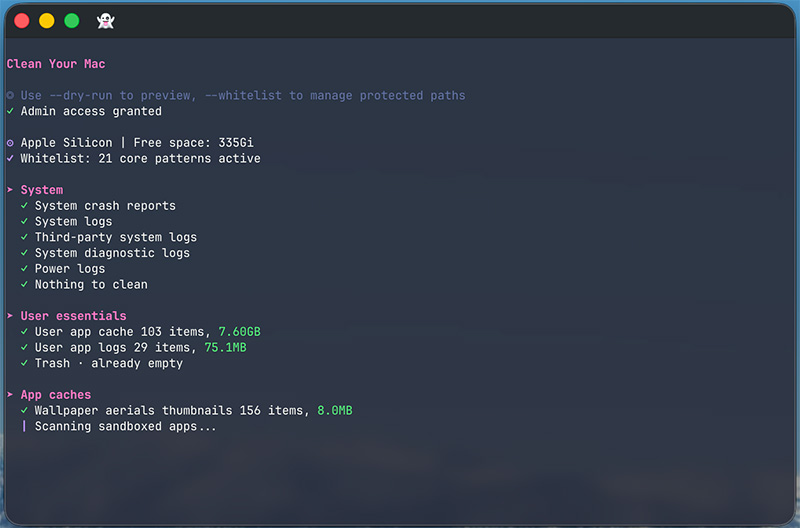
The flagship feature. Running mo clean scans your system across several categories and reports exactly how much space is reclaimed:
1
2
3
4
5
6
7
8
9
10
11
12
13
14
$ mo clean

Scanning cache directories...

  ✓ User app cache                                           45.2GB
  ✓ Browser cache (Chrome, Safari, Firefox)                  10.5GB
  ✓ Developer tools (Xcode, Node.js, npm)                    23.3GB
  ✓ System logs and temp files                                3.8GB
  ✓ App-specific cache (Spotify, Dropbox, Slack)              8.4GB
  ✓ Trash                                                    12.3GB

====================================================================
Space freed: 95.5GB | Free space now: 223.5GB
====================================================================
Before committing, always preview with --dry-run:
1
2
mo clean --dry-run
mo clean --dry-run --debug   # Preview + detailed logs
You can also manage a whitelist of caches you want to protect from cleanup:
1
mo clean --whitelist
Destructive operations like clean, uninstall, and purge log all file operations to ~/Library/Logs/mole/operations.log, giving you a full audit trail. You can disable logging with MO_NO_OPLOG=1 if needed.
Smart App Uninstalling with mo uninstall
Mole presents an interactive list of installed applications with their sizes and last-used recency. You select what to remove, and it handles the rest:
1
2
3
4
5
6
7
$ mo uninstall

Select Apps to Remove
═══════════════════════════
▶ ☑ Photoshop 2024            (4.2G) | Old
  ☐ IntelliJ IDEA             (2.8G) | Recent
  ☐ Premiere Pro              (3.4G) | Recent
After removal, Mole reports exactly which locations were cleaned: Application Support, Caches, Preferences, Logs, WebKit storage, Cookies, Extensions, Plugins, and Launch daemons. Where a simple trash operation would leave behind gigabytes of orphaned files, Mole traces and removes them all.
System Optimization with mo optimize
1
mo optimize
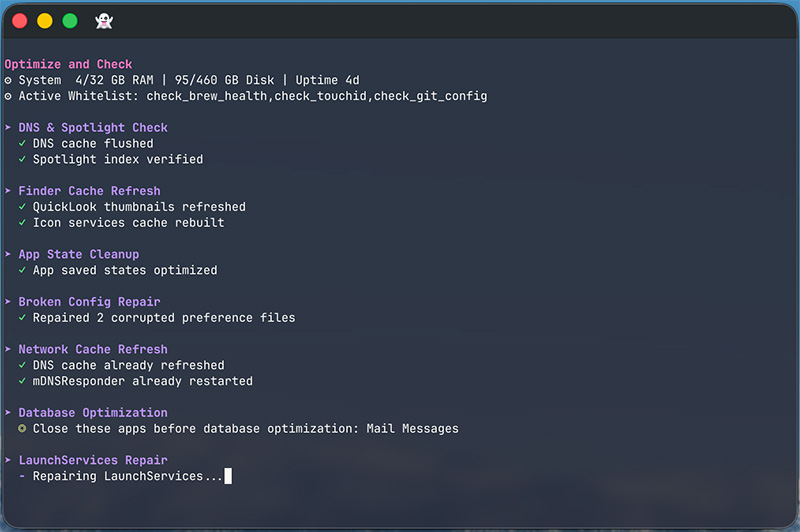
This command rebuilds system databases and caches, resets network services, refreshes Finder and Dock, cleans diagnostic and crash logs, removes swap files, and rebuilds both Launch Services and the Spotlight index. It takes a minute or two and requires no interaction. Use mo optimize --whitelist to exclude specific steps you’d rather leave alone.
Disk Space Analysis with mo analyze
A visual, keyboard-navigable disk explorer:
1
2
3
4
5
6
7
8
9
10
11
$ mo analyze

Analyze Disk  ~/Documents  |  Total: 156.8GB

 ▶  1. ███████████████████  48.2%  |  📁 Library                     75.4GB  >6mo
    2. ██████████░░░░░░░░░  22.1%  |  📁 Downloads                   34.6GB
    3. ████░░░░░░░░░░░░░░░  14.3%  |  📁 Movies                      22.4GB
    4. ███░░░░░░░░░░░░░░░░  10.8%  |  📁 Documents                   16.9GB
    5. ██░░░░░░░░░░░░░░░░░   5.2%  |  📄 backup_2023.zip              8.2GB

  ↑↓←→ Navigate  |  O Open  |  F Show  |  ⌫ Delete  |  L Large files  |  Q Quit
Pressing ⌫ sends items to Trash through Finder rather than deleting directly, making mo analyze the safest way to do ad hoc cleanup. You can also target external drives specifically:
1
mo analyze /Volumes
Live System Status with mo status
A real-time dashboard showing a health score (0–100), CPU usage per-core, memory breakdown, disk I/O, network throughput, power and battery status, and top processes by CPU:
1
2
3
4
5
6
7
$ mo status

Mole Status  Health ● 92  MacBook Pro · M4 Pro · 32GB · macOS 14.5

⚙ CPU                                    ▦ Memory
Total   ████████████░░░░░░░  45.2%       Used    ███████████░░░░░░░  58.4%
...
The health score aggregates CPU load, memory pressure, disk usage, temperature, and I/O load into a single number with color-coded ranges. You can also set CPU alert thresholds for sustained high-usage processes using --proc-cpu-threshold.
For scripting, pipe mo status to get JSON output automatically:
1
2
mo status | jq '.health_score'
# 92
Project Artifact Cleanup with mo purge
A lifesaver for developers. mo purge scans your configured project directories and finds old build artifacts—node_modules, target, .build, build, dist, venv—and lets you clean them interactively. Projects newer than 7 days are marked and unselected by default as a safety measure.
Configure your scan paths once and forget about it:
1
2
mo purge --paths
# or edit ~/.config/mole/purge_paths directly
Installer Cleanup with mo installer
Finds and removes large installer files (.dmg, .pkg, .zip) across Downloads, Desktop, Homebrew caches, iCloud, and Mail. Everything is labeled by source so you know exactly where it came from before deleting.
Raycast and Alfred Integration
Mole ships with a setup script that adds 5 quick-launcher commands for Raycast and Alfred:
1
curl -fsSL https://raw.githubusercontent.com/tw93/Mole/main/scripts/setup-quick-launchers.sh | bash
This gives you Mole Clean, Mole Uninstall, Mole Optimize, Mole Analyze, and Mole Status accessible directly from your launcher of choice—no terminal required.
After running the script in Raycast, you’ll need to add the script directory once: go to Settings → Extensions → Script Commands → Add Script Directory → ~/Library/Application Support/Raycast/script-commands.
Safety Design
Mole is doing real, destructive work on your filesystem, and the project takes this seriously. A few notable safety defaults:
--dry-runis available on all destructive commands:clean,uninstall,purge,installer,remove,optimize,completion, andtouchid enable. Always use it first on a new machine.- File operation logging: All deletions are written to
~/Library/Logs/mole/operations.log. - Whitelist support: Both
mo cleanandmo optimizelet you protect specific paths or steps. - Conservative defaults: When risk or uncertainty is high, Mole skips or requires stronger confirmation rather than expanding its deletion scope.
- Trash instead of delete:
mo analyzemoves files to Trash via Finder, giving you a recovery window.
The project also publishes a full SECURITY.md and SECURITY_AUDIT.md documenting safety boundaries and current limitations, which is a level of transparency you rarely see in open-source system utilities.
Cost Comparison
| Tool | Cost |
|---|---|
| CleanMyMac X | ~$40/year |
| AppCleaner | Free (but limited) |
| DaisyDisk | ~$10 one-time |
| iStat Menus | ~$15 one-time or subscription |
| Combined | $65+ and counting |
| Mole | $0, MIT license, forever |
The value proposition is hard to argue with, especially for developers and power users who are already comfortable in the terminal.
Who Should Use Mole?
Mole is an excellent fit for:
- Developers with giant
node_modulesgraveyards and Xcode caches eating up disk space - Power users who prefer keyboard-driven, terminal-native tools over GUI apps
- Anyone tired of paying for CleanMyMac or similar subscription-based utilities
- Automation enthusiasts who want to integrate system cleanup into scripts, cron jobs, or launchers
- Privacy-conscious users who don’t want a background agent running and reporting system data
Mole might not be the right choice if you:
- Prefer a point-and-click experience with no terminal involvement
- Need deep macOS Ventura/Sonoma/Sequoia-specific features that GUI apps have specialized in
- Are not comfortable reviewing
--dry-runoutput before confirming destructive operations
Conclusion
Mole is one of those rare open-source tools that does exactly what it promises, does it well, and asks for nothing in return. Replacing four paid macOS utilities with a single Homebrew install is a compelling proposition on its own—but the scriptability, dry-run safety, JSON output, and Raycast integration push it well beyond a simple alternative.
If you’re a macOS user who spends time in the terminal, there’s no good reason not to have mo in your toolkit. The 44k+ stars on GitHub suggest the community agrees.
Get started in seconds:
1
2
brew install mole
mo
Your disk will thank you.
Tags: macOS, Command Line, TUI, Open Source, Developer Tools, Productivity